
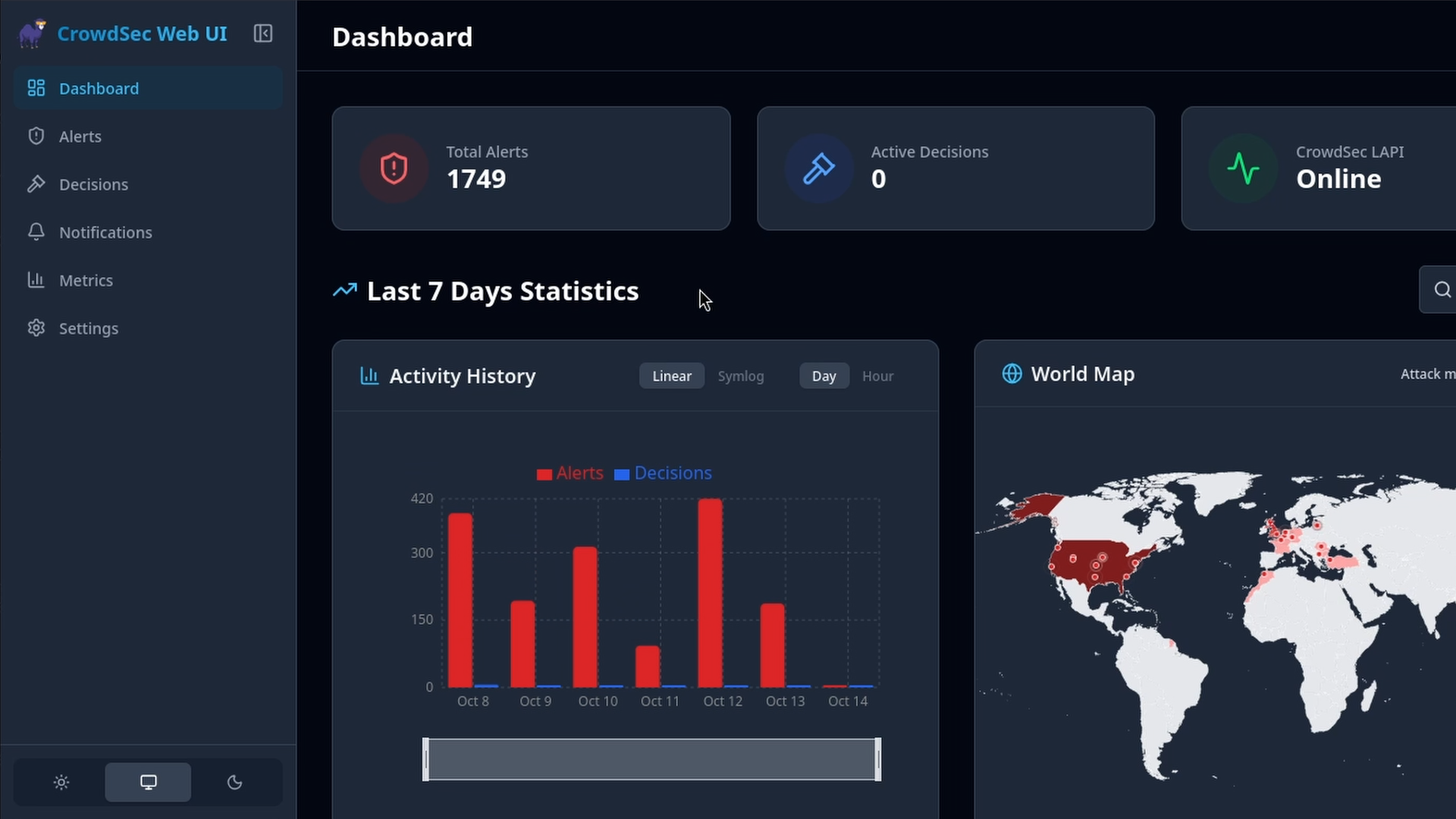
Sometimes you want to open a dashboard and see what CrowdSec caught. crowdsec-web-ui by TheDuffman85 gives you a self-hosted view of alerts, decisions, and metrics. It's a React and Node app that talks to CrowdSec's Local API (LAPI), stores its own state in SQLite, and supports notifications. It's AGPL-3.0 and doesn't require an account with a hosted dashboard service.
We're going to run it alongside an existing self-hosted NetBird deployment, with access limited to devices in your NetBird network. We'll publish it as a NetBird-only service, so it won't need a published host port or expose its login page to the internet. I prefer keeping a dashboard that can unban IPs private.
is a community project. Neither NetBird nor CrowdSec maintains or supports it, so check its releases and security history before giving it access to CrowdSec.
Prerequisites
This walkthrough uses the Docker Compose stack from NetBird's self-hosted setup. Before starting, you should have:
- A self-hosted NetBird deployment with NetBird Proxy working, including its domain and wildcard DNS record.
- A healthy service in the same Compose project, sharing the Docker network with the service.
- Docker with Compose v2, , , and shell access to the host.
- A device connected to your NetBird network and access to the NetBird dashboard to create a private service.
For a new deployment, follow the self-hosting quickstart, select Traefik, and enable the proxy and CrowdSec when prompted. For an existing deployment, follow Enable Reverse Proxy Feature. If only CrowdSec is missing, start at Step 7: Enable CrowdSec IP reputation.
All commands run from your NetBird install directory, where , , and the directory live. Set that path once:
Confirm the proxy and CrowdSec are running and that CrowdSec's Local API is healthy:
Keep your existing service configuration, networks, and volumes as you add the web UI to .
Register the web UI as a CrowdSec machine
A bouncer reads CrowdSec decisions to enforce blocks. The web UI authenticates as a machine instead because it needs the alert and decision-management APIs, not just bouncer decisions. It fetches Prometheus metrics separately. Put the machine password in its own secret file:
Then register it:
Keep that on there. You've already saved the password in the secret file, so this discards the extra credentials file.
The web UI runs as the container's user. Do note that file-backed Compose secrets keep the host file's ownership and permissions, so a password owned by root or another user with mode won't be readable by the app.
Use the pinned image to set the file's group to the container's group and allow that group to read it. This keeps the host owner unchanged and checks that can read the file without printing the password:
Mode gives the owner read/write access and the group read access, with no access for everyone else. Keep the directory at as created above.
Add the container
Go ahead and drop this into :
Without a section, the container doesn't publish a host port. You'll reach it through NetBird Proxy.
Define the mounted secret at the top level of the Compose file:
Bring it up:
Enable private services on the proxy
The standalone image can serve private services, but it doesn't turn that on by default. Add this to :
Restart:
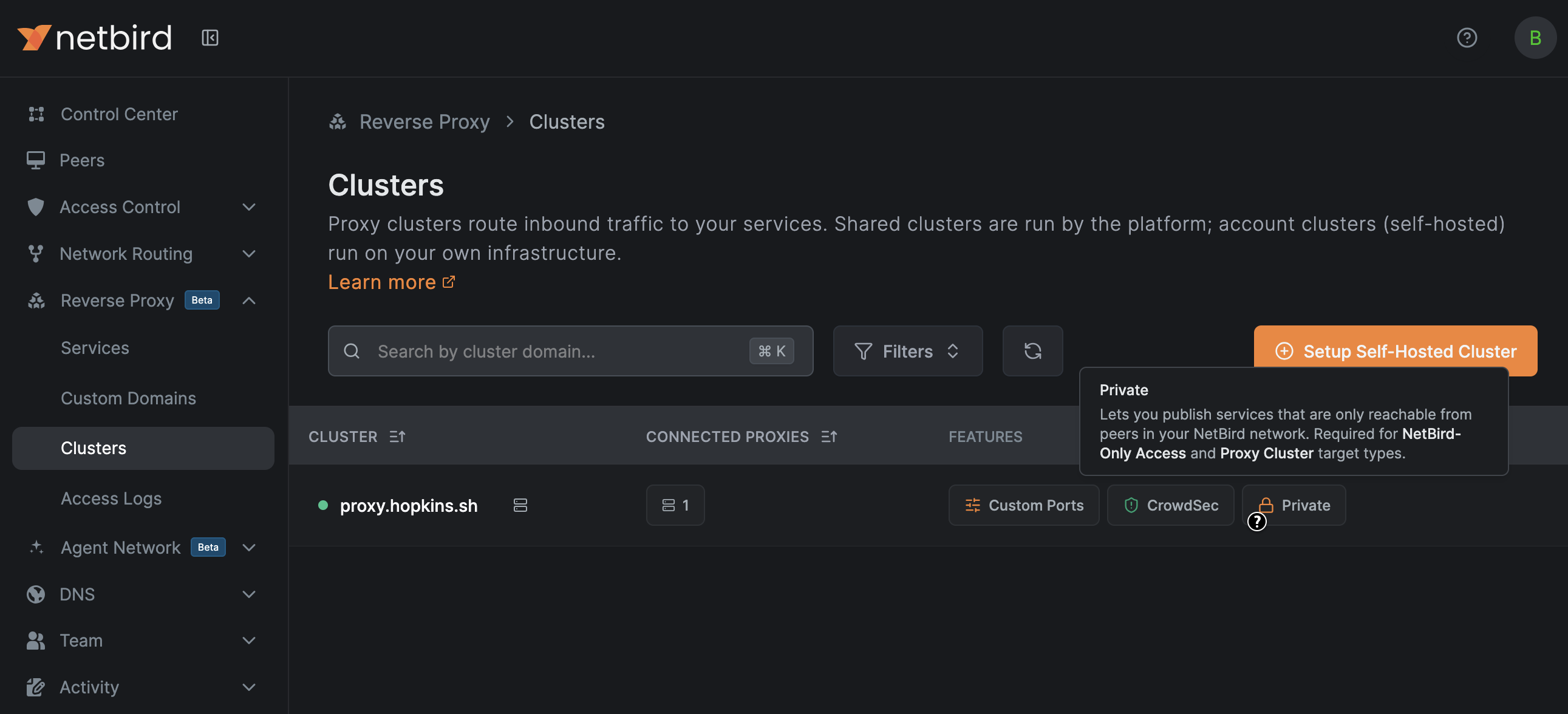
That flag turns on the proxy's private WireGuard listeners and tells the management server that the cluster supports services. Now go to Reverse Proxy > Clusters in the dashboard. Your cluster row should show a Private badge in the Features column. If it's missing, check and the logs to see whether the proxy picked up the flag.
Publish the dashboard
Head to Reverse Proxy > Services and click Add Service.
On the Details tab:
- Service mode: HTTP
- Subdomain: (or whatever you like)
- Base domain: your cluster's domain
- Click Add Target, set the type to Proxy Cluster, host , protocol HTTP, port
A Proxy Cluster target connects straight from the proxy container to ; it doesn't send the request through NetBird's outbound path. Since both containers are on the network, Docker DNS resolves the name.
Direct Upstream is required for Proxy Cluster targets. The dashboard sets and locks it for you; API clients must set it themselves. This controls the hop from the proxy to the backend. The flag handles the other side: allowing devices to reach the proxy through NetBird.
On the Authentication tab, turn on NetBird-Only Access and start with a group containing only you, or whoever will create the first account.
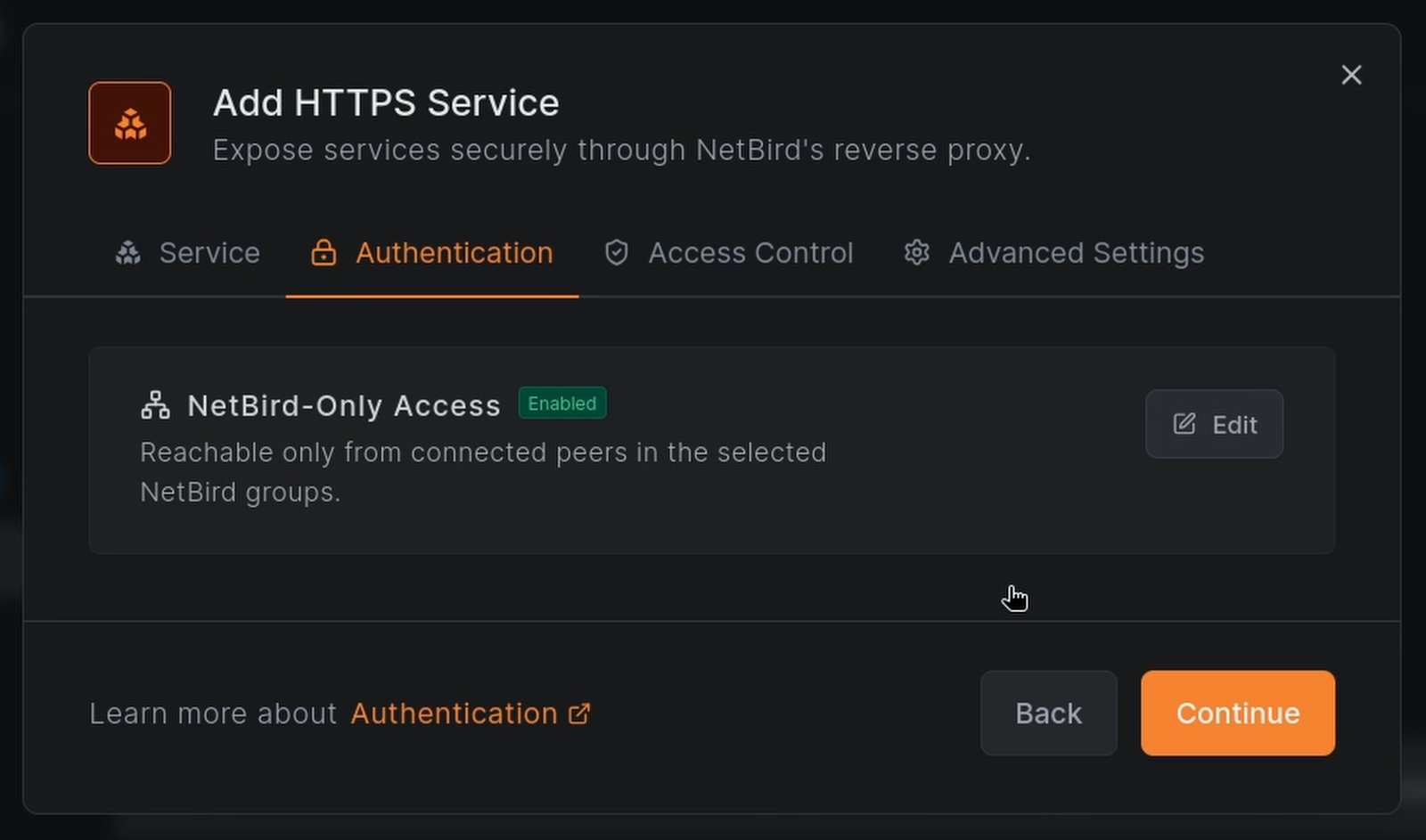
Click Add Service and wait for it to go .
Now use a NetBird-connected device (a peer) in that small group to open . A fresh instance lets the first visitor claim the admin account, so don't open the group up yet. Create the account, turn on an authenticator app (TOTP) or a passkey, and then add the rest of your admins.
To check access, start on a peer. The name should resolve to a NetBird overlay address instead of your server's public IP:
Then disconnect the NetBird client on that machine and reload the page. You should lose access to the dashboard, and reconnecting should bring it back.
Do note that disconnecting doesn't remove the name from DNS. Your wildcard record still resolves publicly and the connection completes, but the proxy returns a 403 because the request came from a non-NetBird source:
You shouldn't expect an NXDOMAIN. If the page still loads for a moment after disconnecting, your browser may be holding a cached DNS answer or an open connection. Try a hard reload. From a peer, the same request returns . Beautiful.
If you'd rather leave off, you can publish a regular HTTP service with SSO authentication on the Authentication tab and CrowdSec set to enforce on the Access Control tab. That gives you a public subdomain protected by your identity provider (IdP) and the same blocklist you're viewing in the dashboard.
Optional settings
Allow alert deletion
CrowdSec has to trust the web UI's network before it allows delete operations. The key in under ships with only loopback addresses. Add your Docker subnet to that existing list rather than pasting in a second block:
Use the subnet of the Docker network shared by CrowdSec and the web UI. The example uses , the NetBird quickstart subnet; replace it if yours differs, then restart CrowdSec to apply the change. The project's alert-deletion documentation covers this permission in more detail.
Connect Prometheus metrics
The Metrics tab asks you to set and enable CrowdSec's Prometheus exporter at level full. These settings ship with the standard CrowdSec container. Check if you've customized your installation:
If those settings are already present, the exporter is serving on inside the Docker network. Tell the web UI where to look by adding one line to its environment:
Then restart just the web UI and reload the Metrics tab:
You can now view runtime metrics for remediation components, log processors, AppSec, parsers, scenarios, and whitelists. I find the graph useful for checking how big the community blocklist has gotten. It plots the numbers described in the IP reputation reference.
Set up passkeys or TOTP
The web UI supports passkeys and TOTP. NetBird Proxy terminates TLS, giving you the secure context passkeys need to register. I'd turn on TOTP at minimum.
Your private dashboard
You've got a local dashboard for CrowdSec, with its credentials stored in a mounted secret and access restricted to your NetBird devices. Claim the first admin account before opening access to the rest of your admins, and confirm that disconnecting NetBird prevents access to the application.
For request inspection on the NetBird dashboard itself, see Protecting Self-Hosted NetBird with CrowdSec AppSec. That guide covers AppSec configuration, testing, monitoring, and recovery if you lock yourself out.
With all that, I do hope this was helpful. Have a great one.