
The video assumes CrowdSec is already running. If you still need to enable it, follow the setup links under Prerequisites first.
Spin up a fresh server, point a domain at it, and within minutes you've got bots hammering , poking at , and trying every SSH password in the book. I can't win against bots on my own, so I'm using CrowdSec to help with that.
NetBird ships a CrowdSec integration for self-hosted deployments. We're going to build on that with CrowdSec AppSec in front of the NetBird dashboard, then test and monitor the protection. I'll also cover how to get back in if it blocks you and how to enroll in the optional CrowdSec Console.
You'll need a self-hosted deployment, where you control the dashboard, proxy, and security stack. NetBird Cloud users don't run those components themselves. Having that control is one of the things I like about self-hosting: you decide how to protect your public and private services.
How CrowdSec works
CrowdSec is an open source security engine. It watches for malicious behavior, makes a decision about the IP behind it, and shares that decision with other CrowdSec users. You get a community-curated blocklist that keeps updating as servers detect attacks.
We'll work with two parts:
- The engine and its Local API (LAPI) run alongside your services. The engine pulls community blocklists, stores decisions locally, and hands them out through LAPI.
- Bouncers enforce those decisions. A bouncer asks the engine "is this IP bad?" and acts on the answer.
Once the engine has synced its decisions, checks happen locally against an in-memory cache. There's no third-party round trip adding latency or an external dependency in the request path.
Why NetBird includes it
NetBird Proxy exposes your internal services to the internet, so anything you publish publicly gets that bot traffic too. NetBird already gives you CIDR allowlists and country blocking for access control, but those are static. You have to know in advance what to block.
CrowdSec handles the addresses you can't list out ahead of time: residential IPs running scanners, compromised VPS ranges, all that noise. NetBird Proxy includes a stream bouncer, so you control it through a per-service dropdown in the dashboard without managing a separate bouncer stack.
Each service can be set to off, enforce, or observe. I do recommend starting with observe. It logs what would have been blocked without blocking it, so you can run it against real traffic for a week and check for problems before switching to enforce.
Prerequisites
I'm assuming you've already got a self-hosted NetBird deployment with NetBird Proxy and CrowdSec working. If you're not there yet, go through Enable Reverse Proxy Feature first. That guide also covers migrating to the combined container setup, which you'll need.
On a new server, the quickstart script offers to set up CrowdSec when you pick Traefik and enable the proxy. Go ahead and say yes to that.
For an existing proxy deployment without CrowdSec, follow Step 7: Enable CrowdSec IP reputation. It covers adding the container, registering the bouncer, configuring , and enabling CrowdSec per service.
Before continuing, you should have:
- A self-hosted NetBird deployment using the internal Traefik reverse proxy
- NetBird Proxy running and showing up in the dashboard
- CrowdSec running, with the proxy bouncer registered and configured
- Docker with Compose v2
- , , and on the host
Every command below runs from your NetBird install directory. That's wherever your generated , , and live. Set this once so you can copy and paste along:
CrowdSec needs the real client IP. If your proxy sees Traefik's container IP instead, every connection looks like it came from the same place and CrowdSec can't distinguish clients. Check that and are set correctly in , especially if you set up the proxy a while back. The reverse proxy guide covers preserving client IP addresses.
Then check that CrowdSec is healthy:
The CrowdSec IP Reputation dropdown should also appear in a proxy service's Access Control tab. Start with observe while you review traffic. For the enforcement modes, access logs, and a manual ban test, see the IP reputation reference.
Part 1: Protecting the NetBird dashboard
So we've got CrowdSec guarding services published through NetBird Proxy. The NetBird dashboard itself is served directly by Traefik, though, so its public login page still needs protection.
CrowdSec AppSec is a web application firewall that inspects HTTP requests. IP reputation asks "is this IP known bad?" AppSec asks "is this request malicious?" Someone probing for on a clean residential IP won't trip the IP blocklist, but AppSec will catch that request.
We're reusing the CrowdSec container from the prerequisite setup. NetBird Proxy and Traefik just get separate bouncer keys against it.
Create a bouncer key for Traefik
You can run these commands twice without overwriting an existing key. keeps readable only by its owner.
Add the AppSec acquisition file
That gets the AppSec listener running on port inside the container.
Update the CrowdSec service
Back into . We're extending the existing service, so keep everything that's already there (, , , , , ) and merge in these changes:
| Field | Why |
|---|---|
| Pins the validated CrowdSec version (). Bump this if your initial setup used an older tag. | |
| Virtual patching rules for common web attack patterns. | |
| Generic AppSec detection rules for the engine. | |
| Registers the Traefik bouncer key without reusing the proxy's key. | |
| The old check only tested LAPI. Now it tests LAPI and the AppSec listener on . |
These two AppSec collections don't need mounted logs: the Traefik plugin sends incoming requests straight to the AppSec listener on . The base collection still needs logs to read before it can detect anything.
The health check reports whether both LAPI and AppSec are ready. If Traefik starts first, the middleware below rejects requests to the dashboard, , and until AppSec is available.
Add the Traefik plugin
Set Traefik to a validated image, add the header-handling flags, and pin the CrowdSec bouncer plugin under :
and plugin match the current NetBird self-hosted defaults. The flags strip request headers whose names contain characters other than letters, digits, and hyphens, closing a header-spoofing path in older Traefik builds. If you already set , replace those flags with these.
Do note that may report an older plugin version than the module tag you pinned. The version string the plugin sends to CrowdSec lags behind; it doesn't affect how the bouncer works.
Keep CrowdSec out of Traefik's startup dependencies. Traefik also handles management, relay, and proxy passthrough traffic, so waiting for CrowdSec's health check would hold up that shared ingress during startup. If you already added a entry under , remove just that entry and keep any other dependencies. The setting below blocks requests on the protected dashboard routes when AppSec is unavailable.
If Traefik starts throwing warnings about a missing Docker network after this, check the value that's already in your Traefik command block. Don't add a second copy of the flag. Newer installer output scopes it to the Compose project name (), while older files may still say . What matters is that the flag matches the network Traefik is actually on.
Confirm the attached networks first:
If that prints something like or and your Traefik command still says , update the existing flag to the name you just saw. Enterprise installs that use an explicitly named network should keep that name when it already matches.
Wire up the middleware
Under , attach the middleware to the dashboard router and define it:
The API and embedded identity provider (IdP) endpoints are served by , so they need the same protection. Add these under :
Swap for your actual domain. Docker Compose can substitute in labels from your shell environment or ; Traefik receives the resolved value. We're using a literal domain here so the rule keeps working when you open a new shell without the earlier export.
Do note that the TCP router handles raw TLS passthrough, so it can't use HTTP middleware. Leave the NetBird Proxy TCP passthrough labels alone.
Apply and verify
Go ahead and validate the configuration, then bring the stack up. Use so you don't print your bouncer key to the terminal, especially if you're sharing your screen:
Open your dashboard in a browser and confirm it still loads and you can log in. Then, in the same browser, go to:
Bots scan constantly, looking for leaked database passwords and API keys. Before adding the middleware, you'd get a 404. Now CrowdSec blocks the request before it reaches the app.
Will you look at that, your own server just treated you like a bot.
For exact status codes, run the same three checks from a shell. Normal requests come back :
And the probe comes back :
Don't pile on probes from your admin IP. Stick to the and probes when testing from your admin IP, and don't throw other suspicious URLs at it. Hitting two different AppSec rules within about a minute can ban that IP for four hours via , which locks you out of the dashboard, , and . If you do lock yourself out, recover over SSH in the section below.
AppSec matches known attack signatures. The rule catches , while other odd-looking URLs may still return a normal 404. To see which rule fired:
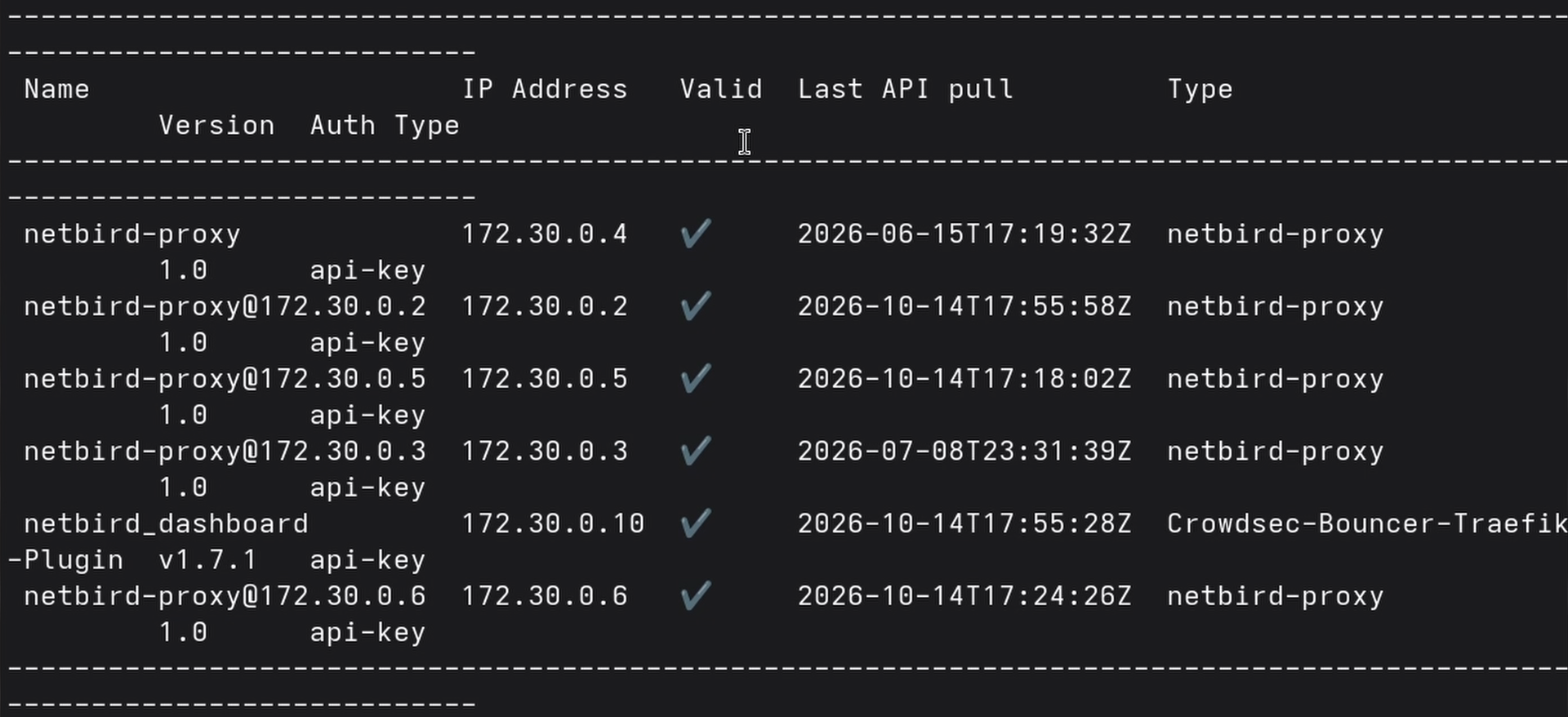
Last thing, confirm both bouncers registered against the one CrowdSec instance:
You should see from the prerequisite setup and from this section, the second one identifying itself as .
If every dashboard request returns right after startup, CrowdSec may still be starting. Check its health and logs, then retry once LAPI and AppSec are ready. If AppSec metrics never move, the middleware probably isn't attached to the router, or Traefik can't reach and .
The manual IP ban test works against the dashboard too, and I demonstrate it in the video. Use a second device on a different public IP, such as your phone on cellular, so you keep access from your admin machine. If you've already allowlisted yourself, add to the command. Do note that banning your own IP locks you out of the dashboard, , and , so use a short duration and see "Locked out of the dashboard" below if you need to get back in.
Monitor the middleware
A label edit without recreating the container, a router rename, or a typo can leave a router without its middleware. Requests can then pass through uninspected while the dashboard loads, logins work, and every container reports healthy. On my test box, the only symptom I found was returning instead of .
I did this to myself while writing this guide and went a good while before I noticed.
Traefik considers a router without middleware valid, so it won't fail closed if the middleware is missing. You'll need a monitor to catch it.
With Uptime Kuma, a cron job, or whatever you already run, point a monitor at each of these URLs:
Run those checks from a stable external address that isn't allowlisted, and expect a 403 from both. The middleware sits on and separately, so a check on alone would still pass if it came off the API router.
Investigate any other response, but don't diagnose it from the status code alone. Allowlisting, an AppSec rule change, or another enforcement change can send the request to the backend while the middleware is still attached. A probe tells you how that request was handled from that source at the time of the check.
Pair that outside-in probe with a quick check on the host for the two middleware labels:
Both commands should print . That tells you the labels are still on the running containers. The probe covers the other half: whether AppSec actually blocked the request.
You can automate the label check through Traefik's API, but don't use . It exposes the dynamic configuration without authentication, including the plugin settings where lives. Keeping port unpublished doesn't save you; another container on the Docker network can still read the key.
You can do this safely with a dedicated API entrypoint bound to Traefik's loopback interface. First, create a dynamic configuration file that exposes on that entrypoint under :
Now merge these fields into the existing service in . Keep the arguments, mounts, and other fields already in that service:
Don't publish , and don't use this with host networking or a container that shares Traefik's network namespace. This only stays isolated because belongs to Traefik inside a normal bridged Compose network.
Apply it and wait for Traefik to become healthy:
I tested the failure path too. Traefik became healthy with both middleware labels in place. Removing either one made the health check fail and marked the container after the configured retries. Restoring the label brought it back to on the next successful check.
One more check: make sure the CrowdSec container can't reach the API:
That should fail with . If you get API data back instead, stop and check the bind address, published ports, and network mode before trusting the health check.
The internal check catches a missing middleware on either Traefik router. Keep the external probe too, to check whether AppSec actually blocked a request.
Traefik can also attach middlewares at the entrypoint level, applying them to every HTTP router automatically. That prevents you from missing one router, but on this stack it would also cover and the and paths, which carry peer traffic. I didn't use it here because I don't want to run gRPC and WebSocket traffic through AppSec or let an IP decision cut off my own peers.
When CrowdSec blocks the wrong person
CrowdSec can block someone it shouldn't, including you. Your home IP might have belonged to someone running a scanner, or your office might share an outbound range that ended up on a blocklist. It's worth setting up a way back in before that happens.
Allowlist yourself first
An allowlisted address is exempt from decisions, including those from the community blocklist. CrowdSec added allowlists in 1.6.6, so they're available in the 1.8.1 version we're using.
Create one and add your addresses:
The on is required. Ranges work the same as single addresses.
Changes take effect immediately, no restart needed. Check your work:
gives you a straight answer, naming which allowlist matched:
CrowdSec also refuses to create a decision against an allowlisted address:
You'll get that error if you allowlist yourself before trying the manual ban test in the IP reputation documentation. Add to the command when you're deliberately testing on your own address.
If the address is already banned when you allowlist it, CrowdSec expires that decision immediately:
You don't need a separate delete command. If you've read older CrowdSec guides, you might have seen in . That's deprecated; use allowlists now.
Clearing a decision
See what's currently active:
shows what's being enforced right now. shows what triggered them, which is useful when you're trying to work out why something got banned.
The column on tells you what generated the alert:
- means local detection caught it in your logs. That requires configuring local log ingestion separately from the IP reputation setup.
- means AppSec caught a malicious request. A single match blocks that request but doesn't ban the IP, which is why the decisions column on that row is empty.
- means you added it by hand.
AppSec request blocks ( in the table) and IP bans usually stay separate. Repeated AppSec hits are the exception: trigger enough distinct rules quickly and the scenario creates an IP decision, which shows up in with that reason.
Drop a single address:
Or, if you've made a mess and want a clean slate:
Do note that this removes all decisions, including the entire community blocklist. On my test box, that was 15,000 decisions:
Restarting CrowdSec may not bring the blocklist back. Startup tries a pull but skips it if the last one was recent. I restarted mine and got nothing, so I had zero reputation data until the next scheduled pull, which can be two hours away. I do recommend deleting only the address you need to unblock.
Your alert history survives , so still shows what happened and why.
Locked out of the dashboard
If AppSec or an IP ban blocks you from the NetBird dashboard, you'll need SSH access to the host to recover. You can't use the blocked dashboard to turn CrowdSec off.
First, check for an IP ban:
If your address is in there, it's an IP ban. That includes bans created by after repeated AppSec matches. If it isn't, AppSec is blocking the request itself, and no amount of will help because there's no decision to delete.
Allowlisting the address clears an IP ban and bypasses AppSec blocking:
When I tested this, went from to about a minute after I allowlisted myself, and back to when I removed the entry. The delay is the Traefik bouncer's stream refresh, so give it a minute before deciding it didn't work.
If you'd rather not allowlist the address permanently and you just want the ban gone:
That took about 30 seconds to restore dashboard access when I timed it.
If you're still getting a on everything and need the dashboard back right now, detach the middleware. Comment out both labels that attach it: one on and one on :
If you comment out only the first label, the dashboard HTML loads but and stay behind the middleware. Nothing populates and you can't log in. I tested this with CrowdSec stopped entirely: one label detached gave on the dashboard root but on both and the OIDC endpoint. With both detached, all three returned .
That leaves the rest of the stack alone. Fix whatever was wrong, then put both labels back.
When you put them back, recreate the containers and re-run the probe:
Label changes take effect when the container is recreated. Since the dashboard and logins can work with the middleware detached, repeat both the probe and the label checks from the monitoring section. A changed status needs investigation; it doesn't prove by itself that the middleware came detached.
If an unusual URL gets an AppSec while normal browsing works, AppSec has blocked that request without issuing an IP ban. You won't find an entry in for it. Check instead.
Part 2: Enrolling with the CrowdSec Console
The CrowdSec Console is an optional, free hosted view of your engine, with access to additional blocklist subscriptions. Community blocklists and local decisions work without an account. For me, the draw is subscribing to curated lists that cover more than the community blocklist alone.
Sign up, grab your enrollment key from the console, and run:
Then accept the enrollment in the Console UI. Once you've accepted it, restart CrowdSec to synchronize the enrollment metadata:
Your instance shows up in the Console with alerts, scenario management, and the blocklist catalog.
Do note that the Console shows an aggregate view of community decisions and scenarios. It doesn't show which proxy requests consulted the bouncer. For those, open Reverse Proxy > Access Logs.
What we've set up
- CrowdSec IP reputation for services published through NetBird Proxy, with per-service controls and observe mode to test before enforcing
- CrowdSec AppSec as a WAF in front of the NetBird dashboard, its API, and the embedded IdP endpoints
- Optional Console enrollment for the hosted view and blocklist subscriptions
- An allowlist and a way back in when CrowdSec blocks someone it shouldn't
All of that uses one CrowdSec container, with NetBird Proxy and Traefik using separate bouncers against the same engine.
For more detail:
- CrowdSec IP Reputation
- Protect the dashboard with CrowdSec AppSec
- Upgrading Traefik and CrowdSec
- Enable Reverse Proxy Feature
- Reverse Proxy authentication and access control
- Access logs
- CrowdSec documentation
Next: A private CrowdSec dashboard
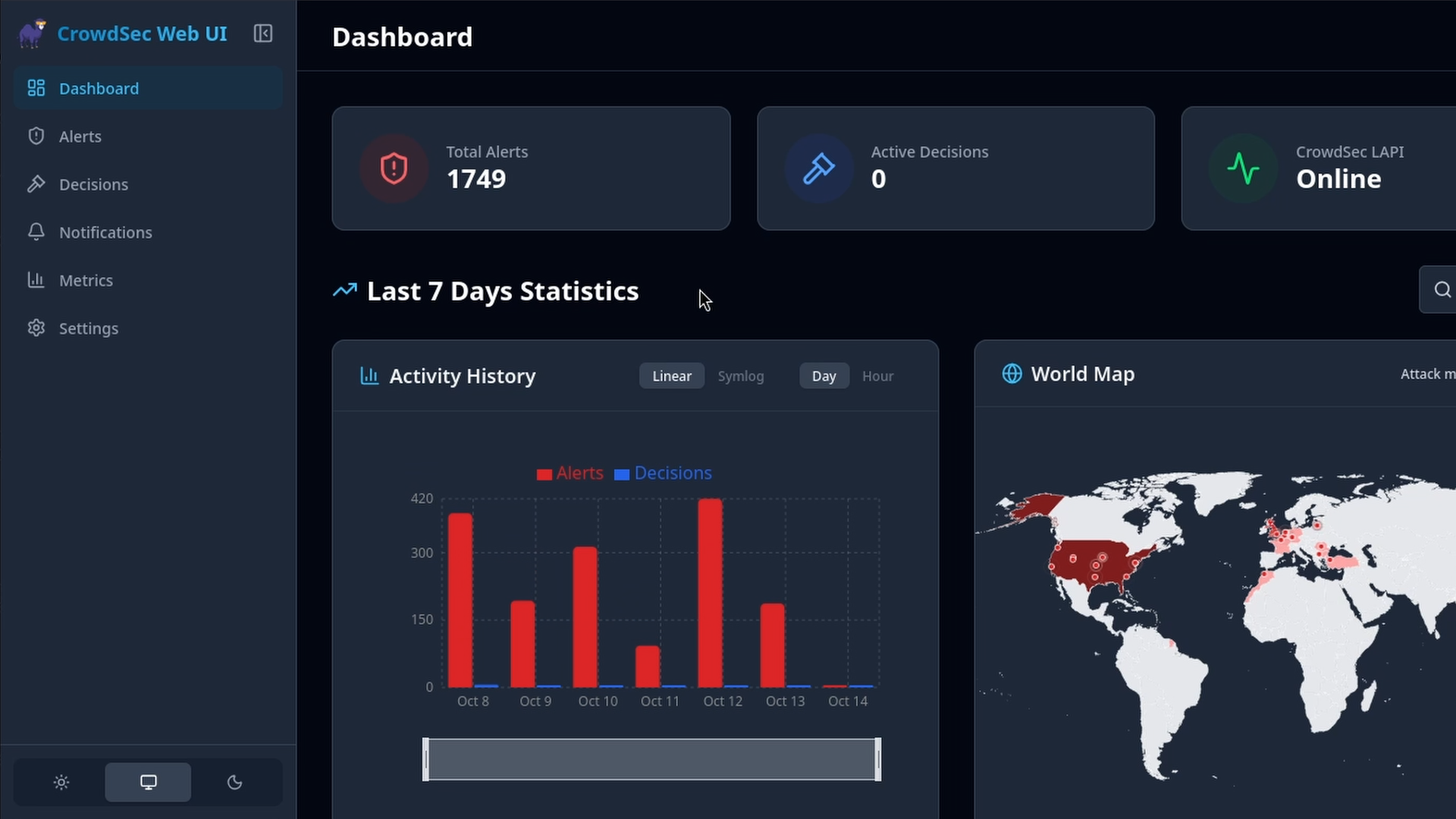
If you'd like a self-hosted view of CrowdSec's alerts, decisions, and metrics, follow Self-Hosting a CrowdSec Dashboard with NetBird. It walks through deploying the web UI, limiting access to your NetBird devices, and setting up its admin account and metrics.
With all that, I do hope this was helpful. Go run observe mode for a week and come back and look at what it caught, I think you'll be surprised. Have a great one.