
On November 10, 2026, n8n released Nod, an open source personal agent that runs in its own Linux workspace with a web browser (which stores your logins, cards, and connections to other apps) and can do things for you, not just answer questions.
You can run it locally on your own computer, but when your computer shuts down, so does your personal agent. So to keep it on all the time, you can run it on a tiny server or a Mac mini. To connect Nod remotely from other devices, n8n has two options in their docs. You can set up a domain with ports 80 and 443 open for HTTPS, but forwarding ports exposes your server to the whole internet and its port scanners, and some home connections block inbound traffic or sit behind CGNAT anyway.
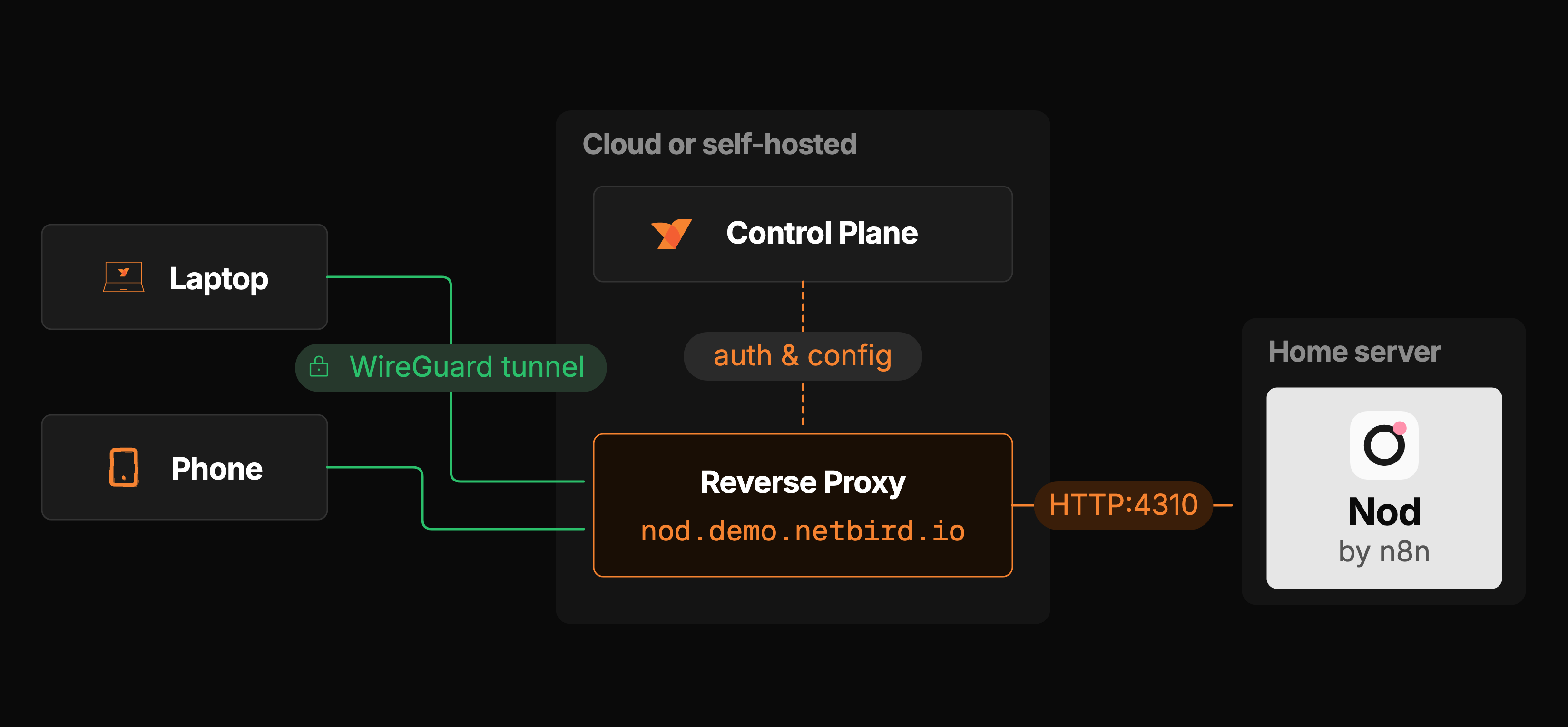
The other option is to connect using a VPN. In this article, we'll walk through how you can securely connect to the home server or Mac mini running Nod from your laptop and phone, all without opening ports.
What is Nod?
Nod is essentially one Node process, and a few Docker containers running on your server. The Node process hosts the web UI and API. The containers host Postgres, the workspace itself, a firewall for that workspace, and a Chromium browser.
You can talk to it in a single chat, either in a chat app (Telegram or WhatsApp), or in the web UI.
It keeps your saved logins in a vault, encrypted with a 32-byte secret key. And those model keys, and saved credentials, don't end up in the workspace or browser containers, but rather stay on the server itself.
Why a VPN alone isn't enough
Nod listens to on port 4310 by default, and its Docker Compose file publishes port 4310 only on the localhost of the server. That means only programs on that machine can reach it, nothing on your network, or on the internet at all. You can VPN into the machine, but nothing in there listens to those packets.
Even n8n's docs that guide you to set this up on a Mac mini say you can't just set up a VPN to access Nod from a separate device.
Nod also requires HTTPS on all addresses other than and . So when you want to reach Nod from your phone's browser from the mesh, you need a real HTTPS hostname, and a certificate.
In order to access Nod securely from anywhere, without opening ports on your router, we can set up a HTTPS reverse proxy using NetBird.
Recommended Access Options
For everyday access from your laptop and phone, we recommend using a private HTTPS address. SSH is still handy for initial setup, troubleshooting, or occasional access from your laptop, but it doesn't need to be your primary access method.
| Rank | Option | Why choose it? | Tradeoff |
|---|---|---|---|
| 1 | NetBird on the host, Nod bound to the host’s NetBird IP, and a private NetBird reverse proxy (Recommended) | Smallest change to Nod’s existing deployment. One HTTPS URL works from laptop and phone. | Requires a proxy cluster supporting private services and NetBird running before Docker binds the published port. |
| 2 | NetBird Docker sidecar with a private HTTPS proxy | A Docker-focused approach that can give the application a dedicated peer identity. | Adds container networking and lifecycle configuration. |
| 3 | Nod bound to its LAN IP, reached through a NetBird routing peer and an HTTPS proxy | Useful when an existing routing peer already provides access to the LAN. | Publishes Nod’s backend on the LAN and adds routing configuration. |
| 4 | SSH tunnel over NetBird | Convenient for initial setup, troubleshooting, or occasional laptop access. | Requires an active tunnel and is less convenient for everyday phone access. |
Why changing the bind address or adding a sidecar is not enough
Options 2 and 3 in the table both still need the addition of the proxy.
In option 2, running a NetBird client container alongside the Nod backend container doesn't work, because there's still no HTTPS endpoint.
If you want to try a sidecar anyway, there are two ways to wire it. Either have a NetBird container join your backend's Docker network, so mesh traffic goes through that. Or have the backend share the NetBird container's network stack using . The latter changes how the backend accesses the other containers, and all Nod-related networking (database, workspace, browser, firewall) in the compose file has to stay as is. Neither is the recommended path, and we would recommend testing the exact integration against Nod's Compose stack before you call it ready.
For option 3, sets what network interface the Nod backend will be accessible on. A LAN address publishes it to your home network. publishes it on all interfaces of the computer it's running on. But that still doesn't get you to an HTTPS address, because Nod itself requires HTTPS to talk to any source other than local. That means your phone's browser still needs a trusted certificate, and that comes from a proxy.
The recommended setup
We have a few different boxes in this setup. A home server running Ubuntu and Docker, where Nod's containers are running and the NetBird client is installed. Then a VPS running a self-hosted NetBird server with its management, signal, relay, dashboard apps behind Traefik. Finally, there's the NetBird proxy container, installed alongside the rest from the same Compose file.
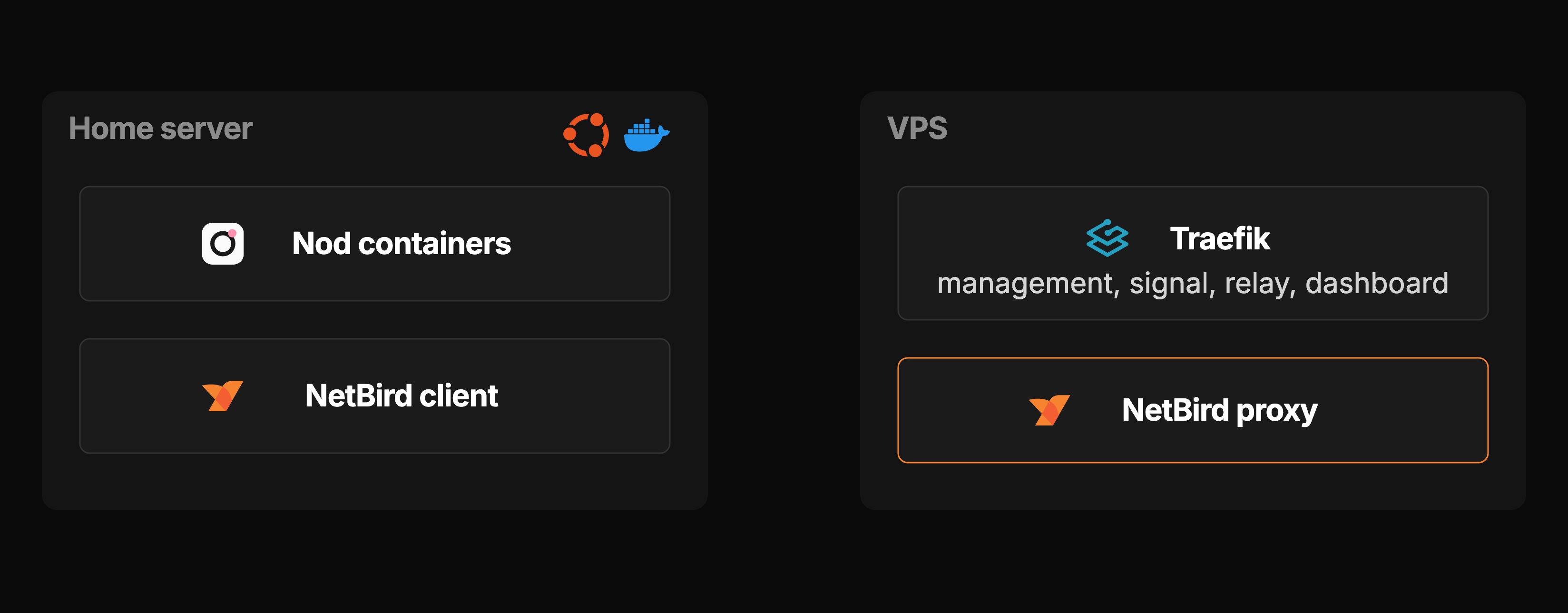
The setup assumes you already have the self-hosted NetBird proxy ready. To add it to an existing setup, follow this guide, or to set up self-hosted NetBird from scratch, check out this video. We're using a laptop and a phone running the NetBird client as peers in the same account.
The only publicly-available listener in this whole thing is on your VPS on port 443, which NetBird needs anyway. There is nothing published to the home server, and the router is still closed. Nod's service only listens to peers in the same account, so anyone not authorized to reach it over WireGuard won't be able to connect to the service.
Install Nod on the home server
Nod requires two CPU cores, 8 GB of memory, and 50 GB of disk. You need Docker Engine 25+ with Docker Compose v2, plus OpenSSL and Git, on a Linux box running AMD64 or ARM64, or on a Mac running Docker Desktop. We'll use Ubuntu 24.04 on the home server. If you're new to Docker, get started with this guide.
Run the commands on the home server itself, either in an SSH session or at the server's terminal.
The script sets the server token, a Vault key and the database password in a file, without ever displaying the secrets. During the first build, it will download dependencies and browser tools, so leave the terminal open for a bit.
You don't need to set right now; leave it on the default for the SSH tunnel to work. We'll set in to prevent usage data from being sent to n8n's PostHog.
The Vault key is saved in too. It's a good idea to back it up with the database, since the database alone can't recover saved credentials.
Join the server to NetBird
On the dashboard, go to Peers → Add Peer → Generate Key, to get a setup key that expires in 24 hours.
Install the client on the home server and join with the key and your management URL.
Your laptop and phone can join your mesh by simply signing in. For the laptop, add a profile with the management URL on the desktop app. On the phone app, go to Change Server, then sign in.
A new account gets policy that allows every peer to talk to every other peer on any port. That policy is only there so everything works out of the box, but it isn't secure to keep, so replace it with specific policies for your own devices and delete it once everything works.
Optional: open Nod over SSH first
Our server runs Ubuntu’s own OpenSSH, and over NetBird port 22 is open to your peers only. With that, Nod’s own remote access recipe works as written, with the NetBird IP as the server.
Open , paste from , finish the onboarding, and connect a model. Your desktop app connects the same way, with Connect to a server, , and the token. App sign ins are opened at , and the tunnel covers them too.
Stop here and you have Nod at home, reachable from your laptop anywhere, and no open ports on your router. The rest of the article builds the recommended option, the private HTTPS address that also works from the phone.
Access Nod on your phone through a private proxy
The Nod phone app does not support the SSH tunnel from a browser, and Nod will not talk to any non-local origin that is not HTTPS. So the phone needs to have an HTTPS hostname, a certificate a browser will trust, and a TLS server on the end.
In order to get this, we can use NetBird's reverse proxy feature, which gives Nod a real HTTPS hostname with a trusted certificate, reachable only from peers in your NetBird account, and carries the WebSockets and Server-Sent Events that Nod's chat needs.
Make port 4310 reachable from the proxy
The proxy can reach the home server's NetBird IP on port 4310. But Nod's Compose file only publishes port 4310 on the server's own localhost. That means nothing on the server will pick up packets arriving from WireGuard.
We fix that with , which specifies the interface on which the port should be published, defaulting to . We'll change that to the NetBird IP of the server.
Run on your server to find the NetBird IP address , and replace the default Nod bind address with it.
Now port 4310 only responds on the NetBird interface, not on your home LAN or the internet at all. If someone tried connecting to directly, they would get a 403, since Nod only replies to headers with the public URL, and would need Nod's access token () anyway.
Docker binds the address at startup, so if NetBird isn't up yet after a reboot, the Nod container will fail to start. Run once NetBird is up, and you're good.
If your home server is a Mac, Docker runs inside a Linux VM, and that VM might not have the Mac's NetBird IP, so publishing the port on it can fail depending on your Docker setup. In that case, keep and run a small TCP forwarder on macOS itself that listens on the NetBird IP and pipes connections to .
Create the service
To create the proxy service, on the dashboard open Networking → Reverse Proxy → Services, then Add Service.
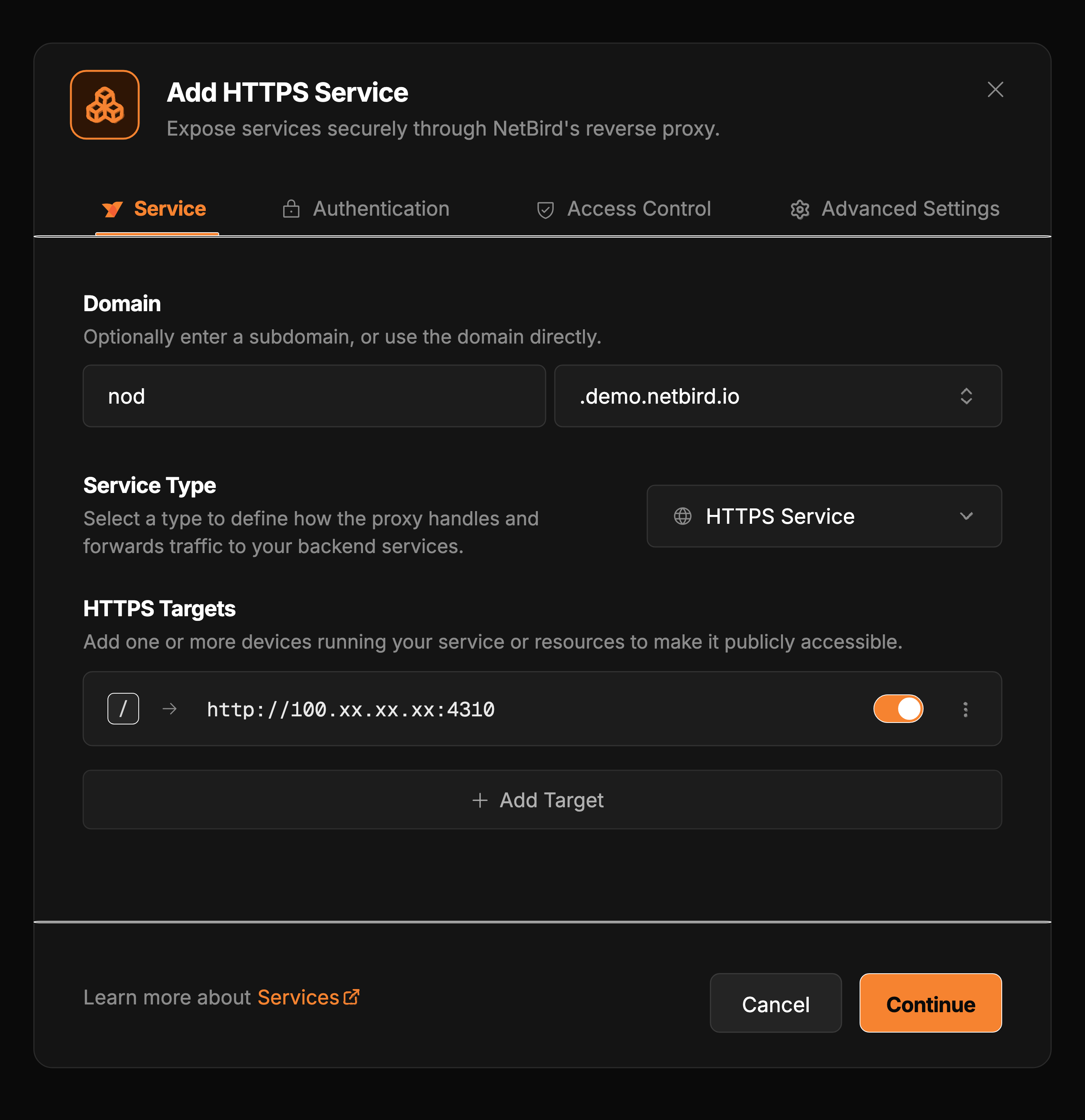
Add the subdomain to and set the domain to the one you set up with the reverse proxy, it should have a Cluster badge. Our example service address is . Leave the Service Type as HTTPS Service.
Under HTTPS Targets, click Add Target and point it to the home server, with the HTTP path and port set to . Once saved, it'll show the path as and the URL as , the server's NetBird IP.
On the Advanced Settings tab, tick Pass Host Header. Nod compares with , so if the two don't match, it returns 403.
For NetBird-Only Access to be available, the proxy has to run in private mode, with in and to bring the proxy back. Then the cluster should show the Private badge on the Clusters page in the dashboard.
On the Authentication tab, click NetBird-Only Access, pick the access group, Enable, and Save Changes. That group must contain the peers, not the user. When a user is in a group, all their devices are not in that group. We had made a group with the laptop and the phone.
Then you need a policy that lets the proxy peer talk to the home server. The proxy joins your network as its own peer once the service exists. Put that peer in a group, then in Access Control → Policies, add a policy from that group to the home server's group on TCP 4310. The Access Control docs walk the policy dialog.
When the service is ready you will see , then when it is up. From the laptop, should connect to the 100.x address and verify the certificate without , curl's skip-verification flag.
Point Nod at its new address
Set in to your own service address, the one from the service you just created, in our case.
Then , so the old environment doesn't stick. Nod compares the browser's address with , character by character, and does not look at forwarded headers. So it should be and the hostname, nothing else, no path, no trailing , and no port unless the service actually has one.
From now on, fails, so if your laptop was connecting via the SSH tunnel, it will now go to the HTTPS address, and the desktop app connects to that same address with . App sign ins open in too, so they have to be reconnected in Apps.
On the phone, open your service address in a browser and paste from the server's .
If the browser shows 403 while NetBird is up, the browser's own DNS-over-HTTPS answered instead of NetBird's DNS: it asked a public resolver, which doesn't know your private record. In the browser's privacy settings, turn secure DNS off or add the hostname as an exception (in Firefox, Settings → Privacy & Security → DNS over HTTPS → Manage Exceptions).
Wrapping up
That's it! Your Nod instance is now running on the home server, with its port published only on the NetBird interface, so both your laptop and phone can access it through the mesh: over SSH for the initial setup, and through its private HTTPS address for everyday use. The only thing listening on the internet is the VPS on port 443, everything on your home network is secure.
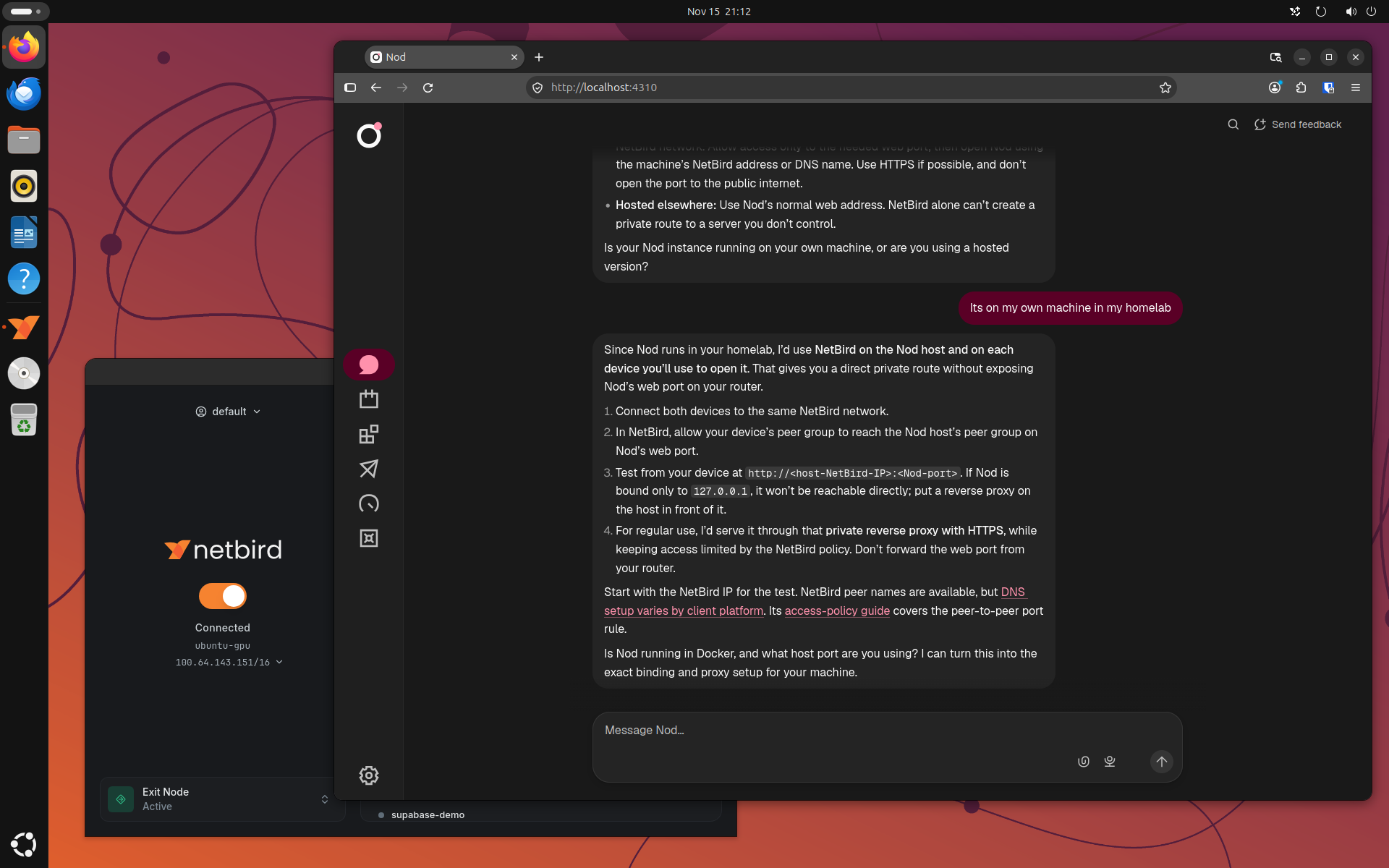
Read Nod's docs for anything you want to do with the agent itself: https://nod.n8n.io/docs/, and NetBird's reverse proxy docs for the proxy side: https://docs.netbird.io/manage/reverse-proxy.
If you run into any issues, you can always find us on Discord!