
Most of the services I want Grok Bot to use live on my home network. A bot could check my NAS and self-hosted apps or pull data from a private database for reports. I'd also like to connect it to a model running on a GPU box. My bots run on a cloud VM, though, so they need a way to reach all of that.
I've been using my self-hosted NetBird deployment for this. With the client installed on the bot's machine, I can use groups and policies to choose which services it can reach. Some have only a private address; others need a connection from a particular network. NetBird handles both, so I can give the bot access while keeping my home services private.
My first use for this was getting an email bot to connect to iCloud Mail through my home server.
Try the NetBird Admin template
If you want to try this with your own network, start with the NetBird Admin template for Grok Bot. It manages NetBird Cloud or a self-hosted deployment directly through the management API. There's no marketplace connector to install.
The bot inventories and audits peers, groups, policies, Networks, routes, DNS, users, and keys, then suggests least-privilege fixes. Audits and health checks stay read-only; changes require your approval.
You'll supply your own setup and credentials during onboarding. The shared template carries none of my memories, tokens, or network details.

Use the NetBird Admin template
The first conversation
The skill walks you through setup one question at a time. It asks what you want to call the bot, what jobs it should do, which services it needs to reach, and what it must never touch. Then it asks whether you're using NetBird Cloud or a self-hosted deployment.
It helps you choose a service-user role: Auditor for read-only work, Network Admin for network configuration, or Admin if the agreed work needs broader permissions. It never asks for Owner access. NetBird's role reference covers the permissions behind those choices.
After you provide the service user's API token during onboarding, the bot reviews existing access before any device joins the network. At the end of setup, it offers a full audit and asks when you'd like the weekly health check to run.
Ask NetBird Admin to connect its VM
Once you've finished NetBird Admin's onboarding, ask it to install NetBird on its Grok Bot VM and join your network. The bot can handle the installation, enrollment, and connection checks. You tell it which services it needs to reach and approve the changes it proposes. You could start with:
I'd like you to install NetBird on your VM and join my network. Ask me which services you need to reach, review the existing policies, and show me the proposed enrollment and access changes for approval before making them.
Before enrolling, the bot should check what access its VM would inherit. Every peer belongs to , and the default to policy allows communication between all peers. A narrow rule won't cancel out that broader allowance. Have it propose explicit policies for the connections your existing devices need before disabling the default policy. The groups and policies documentation explains how these rules combine.
Ask it to use a dedicated group and a one-off setup key with a short expiration. Depending on its permissions, it may need you to supply the key through a secure prompt or secrets store. Once the VM joins, it should report the peer name, group, and connection test results, then revoke the enrollment key with your approval or tell you how to do so. Revoking a setup key prevents further enrollment with it; the connected peer stays online.
How it handles changes
The skill holds the operating rules. Before making a change, the bot shows you what it will do, what access that allows, and how to undo it. Once you approve that specific change, it applies it, checks the result, and logs what happened.
The playbook also covers granting access to peers and resources, preserving unrelated settings during updates, enrolling a machine with a setup key file, and cutting off access when needed.
Weekly health checks
The weekly routine flags offline peers, expired logins, duplicate peers, old clients, empty groups still referenced by policies, unusable or never-expiring keys, and changes since the previous check. If there's nothing to act on, it sends one line saying the network looks healthy.
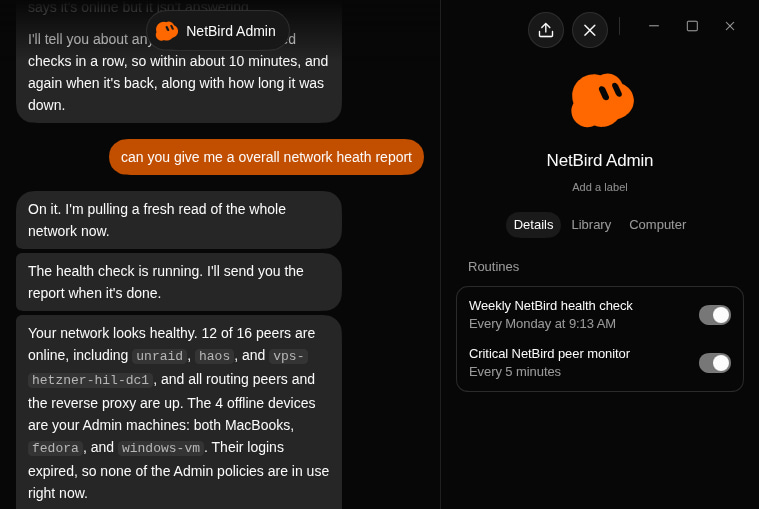
An on-demand report from my network, alongside the weekly check and a separate critical peer monitor set to run every five minutes.
Why NetBird works well with Grok Bot
NetBird works at the network layer, so the bot can use its existing tools over the connection. That includes SSH, PostgreSQL queries, IMAP, and calls to application APIs. You still need a client and credentials for each service, but you can manage network access in the same dashboard you use for your other devices.
If the service's machine runs NetBird, allow the bot to reach that peer on the required port. For an appliance or a service that can't run the client, add its host address, subnet, or domain as a resource in a NetBird Network and use a routing peer that can reach it. This also lets you send a connection through a particular machine, as I did with iCloud.
You don't need inbound port forwarding on your home router for this. The services can also be spread across your homelab, a VPS, or another cloud provider, with policies controlling which ones the bot can use.
Two bots, one machine
For this project, Personal Email handled my inboxes and NetBird Admin handled the network configuration.
Both ran on the same cloud Linux VM, which the platform calls the box. NetBird Admin installed NetBird 0.80.0 on that machine and enrolled it with a setup key. It showed up in my dashboard as .
The VM could then connect to peers in my existing network, including my Unraid server.
Connecting Grok Bot to iCloud Mail
I wanted Personal Email to clean up two inboxes. It could reach one just fine, but the iCloud connection kept timing out.
Personal Email needed to connect to on TCP port , using TLS and an app-specific password as described in Apple's mail server settings.
On the cloud VM, DNS returned the platform's egress proxy address, . Allowlisting the hostname didn't fix the timeout on port 993, so the bot couldn't even get far enough to try logging in.
NetBird Admin proposed routing the connection through my Unraid server's internet connection. It explained the change and waited for my approval, since the route would take traffic around the box's egress controls. If you're doing this on a managed platform, check that its operator allows that routing arrangement too.
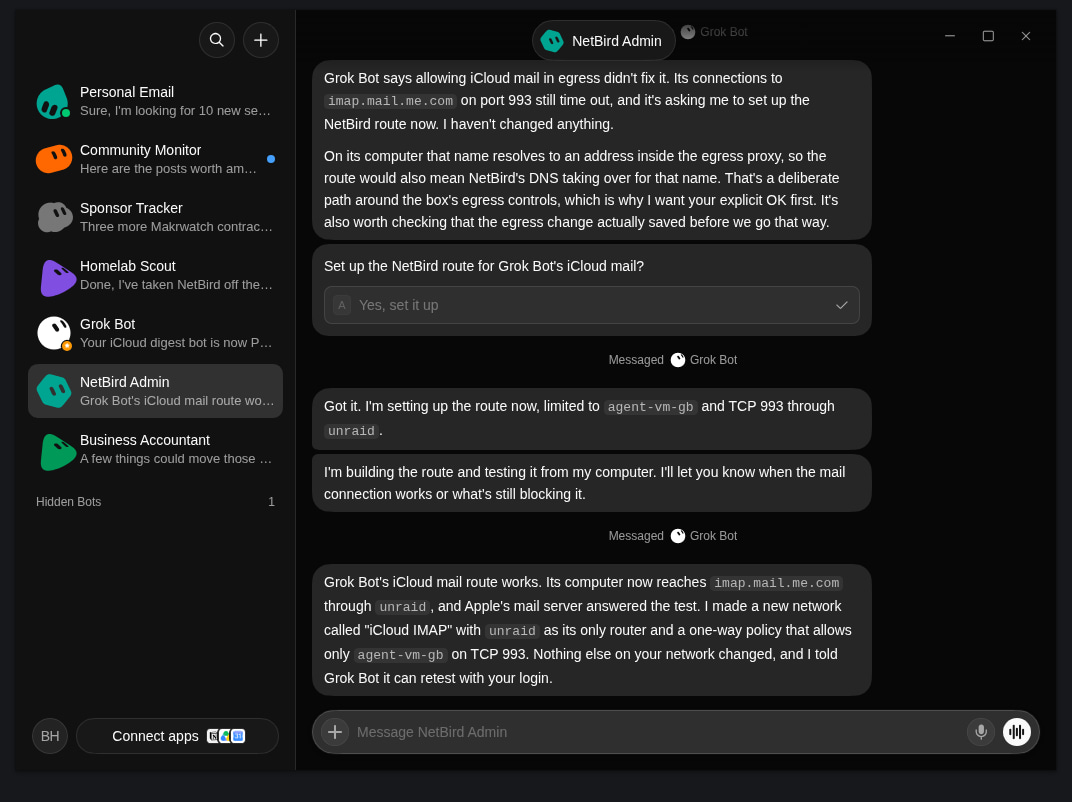
Route the IMAP connection through home
NetBird Admin added Apple's public IMAP service as a domain resource in a NetBird Network, with my Unraid server as the routing peer.
| Setting | Value |
|---|---|
| Network | |
| Routing peer | |
| Domain resource | |
| Resource group | |
| Policy | |
| Source group | Dedicated agent group containing only |
| Destination | |
| Protocol and port | TCP |
| Direction | Agent initiates the connection |
In the dashboard, create the Network and add the routing peer and domain resource using these values. Assign the resource to its group, then create a policy from your dedicated agent group to that resource group. Limit the source group to the intended VM and allow one-way TCP 993 connections.
The routing peer must be able to resolve the hostname and reach Apple's service. Leave masquerade enabled so forwarded connections use the routing peer's address on the destination side. With a domain resource, NetBird resolves the name through the routing peer and follows the returned addresses. You don't have to pin the resource to an Apple IP that might change.
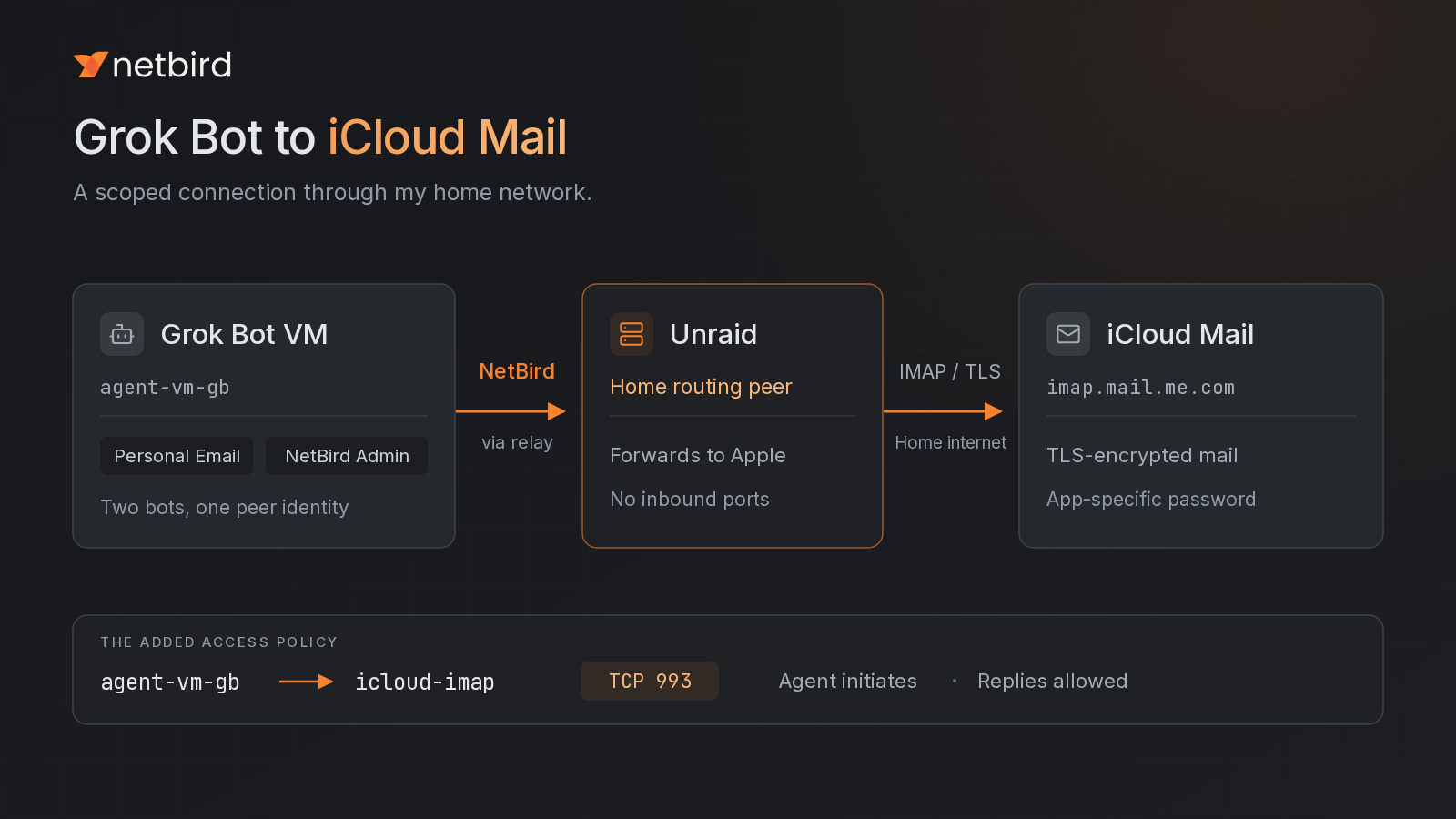
The WireGuard tunnel carries traffic between the VM and Unraid. From Unraid onward, the connection goes out to Apple through my home internet connection, with IMAP's TLS protecting the mail session. Replies travel back along the same path; one-way initiation still allows responses.
This rule adds access to the IMAP resource. It doesn't grant access to Unraid's dashboard or SSH service, and it doesn't turn Unraid into a default exit node for all of the VM's internet traffic.
NetBird Admin reported a successful TLS handshake and IMAP greeting through Unraid. Personal Email could then work through both inboxes, archiving roughly 1,130 messages in the first cleanup.
Other uses for Grok Bot and NetBird
These are a few other jobs I'd like to try, with a separate policy and application credentials for each service.
Get a morning report from your homelab
I have an Unraid server, a NAS, Home Assistant, and other services spread across my network. A bot that can check those systems could give me one morning summary: which containers stopped overnight, whether a backup completed, whether a disk is reporting problems, and anything unusual in the logs.
Put the monitoring targets in their own groups and allow only the endpoints the bot needs. That might be an HTTPS API or a metrics endpoint. If you're using SSH, restrict the account to the diagnostic commands you want it to run. A regular SSH account isn't automatically read-only; those restrictions need to be set on the server.
I'd get the read-only checks working first. A morning report would save me a lot of clicking around, even before adding a separate tool for approved actions such as restarting a failed service.
Turn private apps into bot tools
Grok Bot could trigger an n8n workflow or update a project through an internal app's API. It could also read the data behind a Grafana dashboard. Those services can keep their private addresses while the bot reaches them over NetBird.
Use a stable DNS name for the app so your tool configuration doesn't depend on remembering an IP.
Give the bot a dedicated app account or token with permissions for the job. If the app can't restrict that credential enough, put a tool in front of it that limits the available actions. With n8n, for example, I'd give the bot a way to trigger a specific workflow before considering general workflow administration.
Use the model running on your GPU box
If you run Ollama, vLLM, or a llama.cpp server at home, Grok Bot could call its inference endpoint as a tool. I'd use this for jobs like classifying documents or processing a batch of text with a model configured for that task.
Put the GPU host in a group and allow the bot's peer to reach the inference port. Ollama commonly uses TCP 11434. My multi-GPU Ollama guide walks through connecting model servers over NetBird.
Check the inference server's listening address and authentication before using it. Anything the model returns to the bot can still enter its cloud context, even though inference runs locally.
Build reports from a private database
For a weekly report, you could let the bot query a PostgreSQL database behind a self-hosted app. An internal metrics API or a reporting replica could also provide the data your team needs.
Give the bot network access to that destination, such as TCP 5432 for PostgreSQL, and a read-only database role limited to the necessary tables or views. You can prepare a reporting view that leaves out fields the bot doesn't need. The NetBird policy limits the connection, while the database role limits the queries and data available through it.
If you're building on Supabase, the self-hosted Supabase guide covers keeping administrative and database access on NetBird.
Test releases in an isolated environment
I'd also like a bot to check new releases against a demo environment. It could detect a release, update a test deployment, and check that peers connect and DNS resolves, then collect the results for me to review.
Keep those machines in a dedicated test environment and allow the bot only the management and test ports it needs. A separate NetBird account provides a clearer boundary when the bot also needs permission to change network configuration.
Setup keys support ephemeral peers for temporary test machines. NetBird removes these peers after they've been offline for more than 10 minutes. Set an expiration and usage limit on the enrollment key as well.
Reach an API through a known egress address
The iCloud example also applies to a service that only accepts connections from an allowlisted IP. If you control a routing peer with an approved, stable public address, you can route the specific API destination through it and limit access to the required port.
A VPS with a static address might suit this better than a home connection. Use exact domain or host resources so you can inspect and revoke access to each destination, and agree on the routing arrangement with the service and platform operators.
Give each job the access it needs
Review the VM's total access as you add services. My IMAP rule was narrow, but the VM already had access to other peers. I still needed to review those broader policies after this project; getting email working didn't mean I'd established least privilege for the whole machine.
Both bots shared one NetBird peer identity. To give them different network permissions, I'd need separate isolated environments, each with its own NetBird client. Separate VMs are a straightforward way to do that. Their credentials and tools need to stay isolated too.
Application permissions matter just as much. For example, allowing an IMAP connection lets the bot move or delete messages if its credentials permit that.
Permission to manage NetBird is separate from permission to reach a service. Asking a bot to wait for approval doesn't restrict its API token. If you need to enforce approval, keep write credentials behind a tool that requires it.
Test how to remove access, too. Disable the relevant policy and try a fresh connection through the route. Test from a peer outside the allowed group, checking that another policy or direct internet path isn't providing access. For a full cutoff, remove the peer and revoke its application and API credentials as appropriate. Revoking its original setup key alone won't disconnect it.
I'd start with one service and a task you've been putting off, using NetBird Cloud or your own self-hosted deployment. Get that connection working before adding the next destination.