
NetBird v0.61.0 builds on our SSH rewrite with fine-grained access control, letting you map NetBird user groups to specific local OS users on target machines. We're also introducing automatic client updates for Windows and macOS, keeping your fleet current without manual intervention.
Fine-Grained SSH Access Control
Version 0.60 brought identity-aware SSH to NetBird, authenticate via your IdP, use native OpenSSH, and get proper audit trails showing which person accessed which server. But there was still something missing with this new workflow; once authenticated, users had access to any local account on the target machine. In enterprise environments and even well-organized homelabs, that's rarely what you want.
v0.61.0 closes that gap with fine-grained SSH access control.
The Problem with All-or-Nothing Access
Consider a typical infrastructure setup: you have developers who need to deploy code, DBAs who manage databases, and sysadmins who handle everything else. Each of these roles should map to different local accounts on your servers:
- Developers should SSH as or
- DBAs should SSH as or
- Sysadmins should SSH as or
Before v0.61.0, you could control whether someone could SSH into a machine, but not which local user they could access. If someone from the dev team could reach a database server, nothing prevented her from attempting to SSH as even if that wasn't that person's role. Thus, trusting everyone with access to act responsibly.
How Fine-Grained Control Works
The new implementation introduces a NetBird SSH protocol type in Access Control policies, distinct from generic TCP port 22 rules. When you create a policy using this protocol, you configure Authorized Groups that define explicit mappings between NetBird user groups and local OS users.
Here's what a typical configuration looks like:
| Source Group | Allowed Local Users |
|---|---|
| Developers | developer, deploy |
| DBAs | postgres |
| SysAdmins | root, admin |
When someone attempts to SSH into a peer:
- They authenticate via OIDC to obtain a JWT token (same as v0.60 )
- NetBird checks if their user ID is authorized for this peer
- NetBird verifies they're allowed to access the specific local user they're requesting
- If both checks pass, the session is established
If a developer tries to SSH as on a database server where they're only authorized as , the connection is denied, even though they have network access to that machine.
Full Access vs. Limited Access
When configuring a NetBird SSH policy, you choose between two modes:
Full Access: Users in the source groups can SSH as any local user on destination machines. This maintains v0.60 behavior for teams that don't need granular restrictions.
Limited Access: You explicitly define which local users each group can access. This is the principle of least privilege applied to SSH, users get exactly the access they need and nothing more.
Security Model
The implementation follows a fail-closed model: if no mapping exists for a requested local user, access is denied by default. Combined with JWT authentication, this creates multiple layers of verification:
- Network-level: ACL policies control which peers can communicate
- Identity-level: OIDC authentication verifies who is connecting
- Account-level: Authorized Groups control which local users they can access
Audit trails now show not just which person accessed which server, but which local account they used, critical information for compliance and incident response.
Automatic Client Updates (Beta)
Keeping NetBird clients updated across a fleet of machines has traditionally required manual intervention or relying on other people in your networks to manually upgrade. v0.61.0 introduces automatic client updates for Windows and macOS, letting you ensure your network stays current without reaching out to users or interacting with each machine individually.
How It Works
When enabled, the update process is straightforward:
- Client connects to the Management server and receives current update settings
- Client compares its version against the configured target version
- If running an older version, a notification appears and the update begins
- Client downloads the update package from NetBird's official repository
- Update installs and the client restarts automatically
Updates are triggered on connection, not on a schedule. This means long-running peers that stay connected won't automatically update mid active connection. A future release will address periodic update checks for always-on infrastructure.
Enabling Auto-Updates
Navigate to Settings → Clients in the NetBird dashboard and enable "Automatic Updates." You can configure updates to either:
- Latest stable version: Clients always update to the newest release
- Specific version: Pin clients to a particular version for controlled rollouts
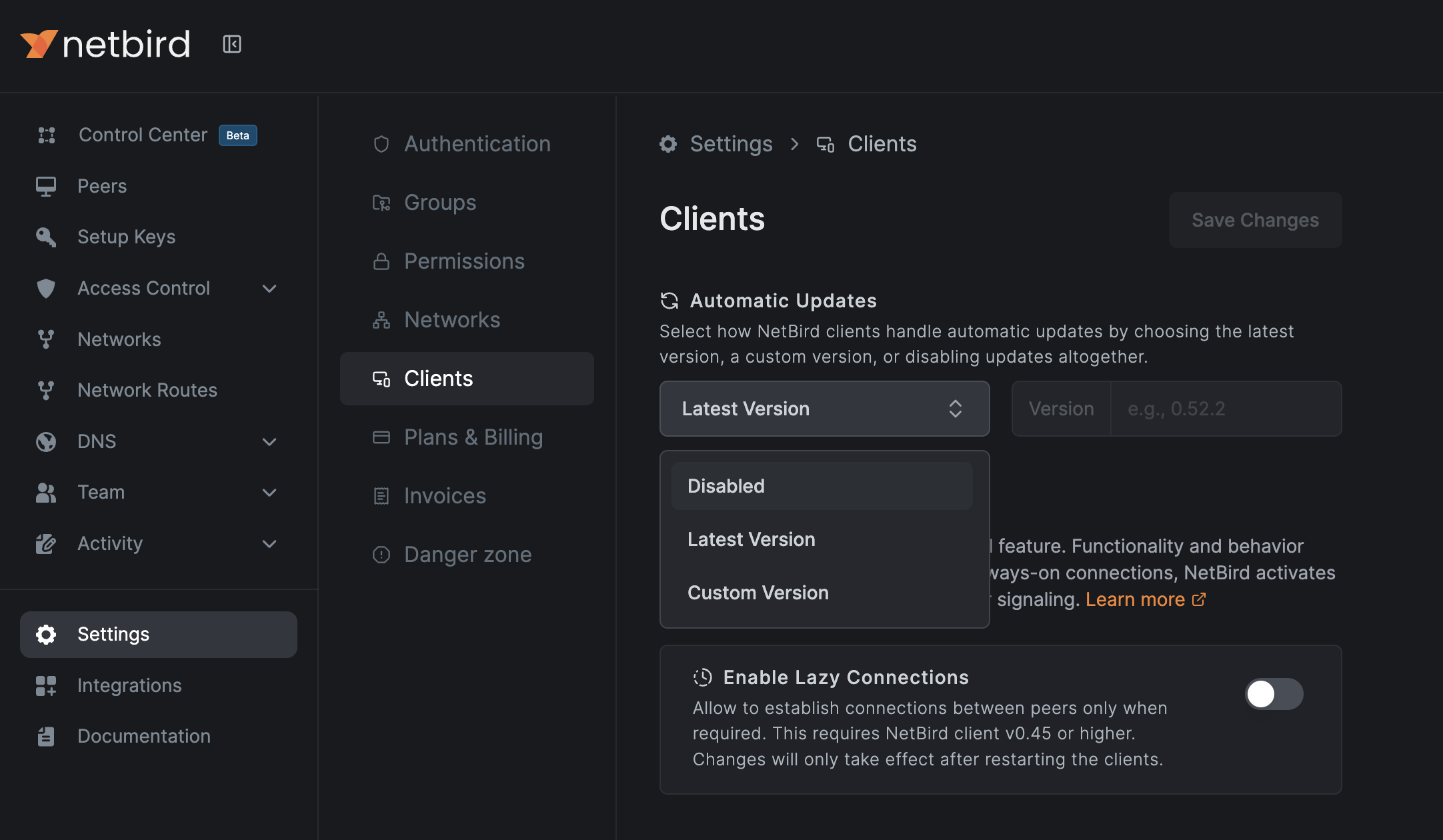
The feature is disabled by default; you opt in when you're ready. Users can also enable updates locally via Settings → Client in the NetBird application.
Platform Support
Automatic updates currently support Windows and macOS only. Linux support isn't available due to the variety of distributions and package managers, though future releases may add support for popular distributions.
Notes on Behavior
- Updates only trigger when the UI is running and the client connects
- If download or installation fails (network issues, permissions), an error notification appears but the client won't retry until the next restart
- All notifications require the NetBird UI to be running with notifications enabled
Migration Path: Breaking Changes for Self-Hosted
This is a breaking change for self-hosted deployments. The fine-grained SSH access control requires coordination between Management server and clients. If you upgrade clients before the Management server, SSH access will break.
Upgrade Order
- Update Management server to v0.61.0
- Update dashboard to v0.61.0
- Update SSH server peers (machines people connect to)
- Update SSH client peers (machines people connect from)
- Create NetBird SSH policies with Authorized Groups configuration
Creating Your First Fine-Grained Policy
- Navigate to Access Control in the dashboard
- Create a new policy with NetBird SSH as the protocol
- Set your source groups (who connects)
- Set your destination groups (which servers)
- Under SSH Access, choose Limited Access
- Configure local user mappings for each source group
- Enable and save
Existing TCP port 22 policies continue working for basic network-level SSH access. The new NetBird SSH protocol adds the fine-grained layer on top.
For detailed configuration options and troubleshooting, check out our SSH documentation and Auto-Update documentation .
- Try NetBird: Get started at netbird.io/pricing
- Learn more: Read the full SSH documentation
- Join the community: Star us on GitHub · Follow us on X