
The DGX Spark is NVIDIA's compact desktop AI computer. It runs DGX OS, which is Ubuntu-based Linux on arm64, and it comes with 128 GB of unified memory for local AI work. It's small enough to sit on a desk at home or in the office.
The trouble starts when you leave that desk. The Spark sits behind your router's NAT, so once you're on another network, it's out of reach. The usual workarounds mean forwarding a port on the router and putting SSH on the public internet, or asking IT to open a hole in the office firewall for you.
NetBird skips all of that. You install it on the Spark and on your laptop, and both join a private WireGuard network where each device gets a stable IP address and DNS name. Traffic goes directly between the two devices when it can and through a relay when a direct connection is blocked. Either way, you don't open any inbound ports on the Spark's network.
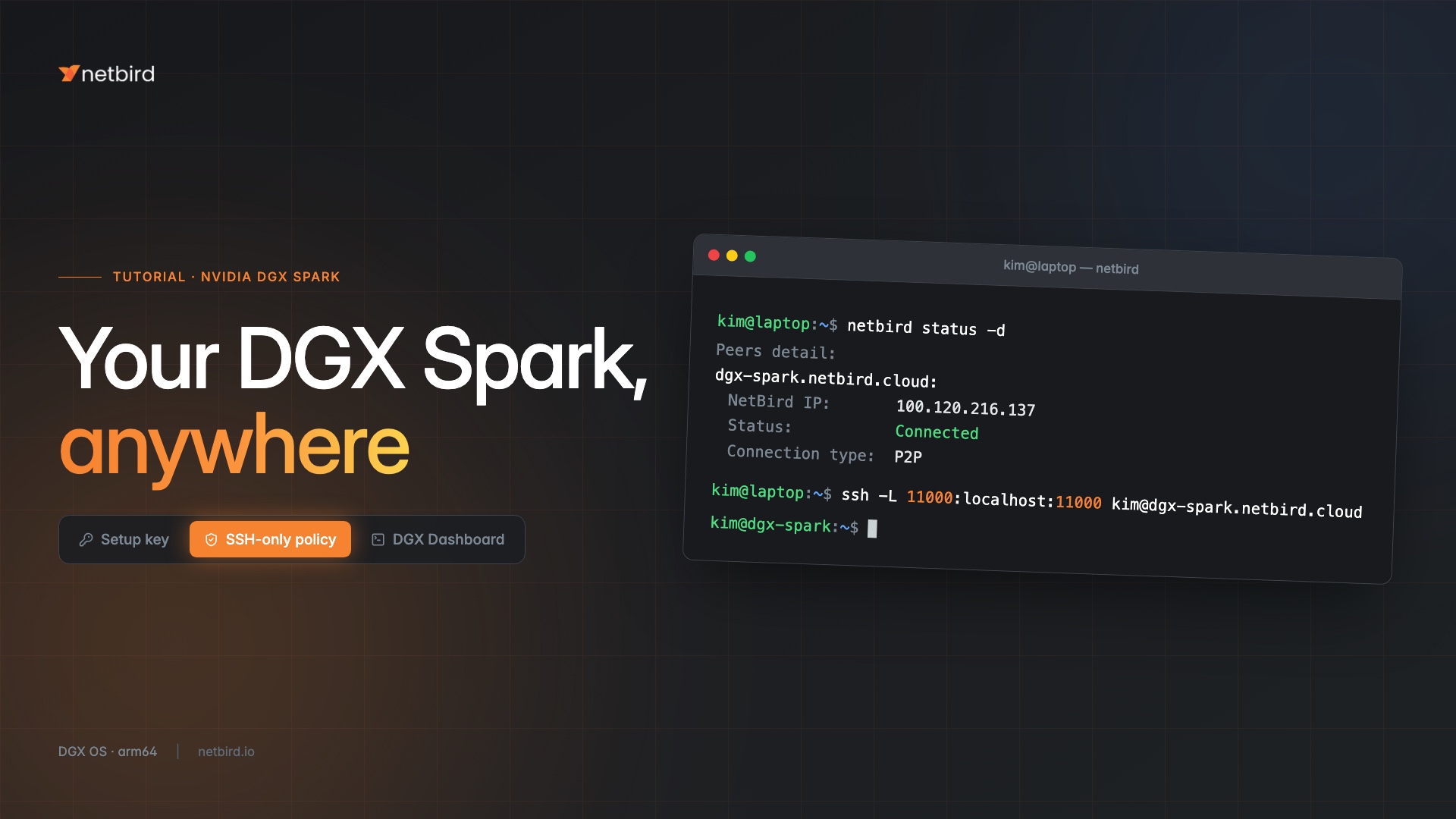
By the end of this guide you'll be able to SSH into the Spark from anywhere, with an access policy that only lets your own devices in, and open the DGX Dashboard, a notebook or a model server running on the Spark in your laptop's browser.
What We're Building
NetBird's management service (Cloud or self-hosted) only hands out peer and policy information, so your SSH traffic never touches it. With the access policy we set up later, which allows only TCP 22, SSH is the only service reachable on the Spark over NetBird. To reach anything else running on it, use an SSH port forward or add those ports to the policy.
What You'll Need
- A DGX Spark running DGX OS, connected to the internet, with a user account that has . For the initial setup you need a local terminal or a LAN SSH session on it.
- A laptop or workstation running macOS, Windows, or Linux.
- A free NetBird Cloud account or a self-hosted NetBird deployment.
- An OpenSSH server on the Spark. On recent Ubuntu releases SSH starts on demand, so can say even when it works. Check that something is listening on port 22 instead with . If nothing is, install and start it:
Install NetBird on the Spark
DGX OS is based on Ubuntu, so NetBird installs from the same apt repository you'd use on any Ubuntu machine. One thing to know first: the Linux desktop app () is built for x86_64 only, and the Spark is an arm64 machine ( reports ). On the Spark you'll use the CLI. Your laptop can still run the desktop app, including on arm64 Macs and Windows devices.
On the Spark, add the repository and install the client:
The package starts the NetBird service for you. Check where it's at:
You should see . The Spark hasn't joined a network yet, so that's expected.
Connect the Spark with a Setup Key
You could run and sign in through your browser, but for a machine that stays put on a desk, I'd go with a setup key. Peers added with SSO login are subject to peer session expiration, which new accounts enable with a 24-hour period. When the session expires, the Spark drops off the network until someone runs on it again, and that someone needs local access to it. Peers added with a setup key aren't affected by session expiration.
Sign in to the NetBird dashboard, go to Peers, and choose Add Peer → Server. Click Generate Key, and the dashboard shows the command with the key already filled in. NetBird is already installed on the Spark, so you only need that last command. It looks like this:
This key works once and expires after 24 hours, which is all you need for one Spark. If you plan to enroll several machines, create a reusable key under Settings → Setup Keys instead, where you can also set Auto-assigned groups so new peers land in the right group automatically.
If you self-host NetBird, pass your management URL as well:
When the command prints , run again to see the Spark's NetBird IP and DNS name. The Spark also shows up under Peers in the dashboard. On NetBird Cloud, peer names end in . Self-hosted deployments use by default. In the commands below, is the Spark's DNS label and is its NetBird IP.
Connect Your Laptop
Install NetBird on the laptop using the installation guide for your OS, and sign in to the same NetBird account where you created the setup key. In the desktop app, choose Cloud on first launch (or Self-hosted and enter your management URL), then select Connect from the NetBird icon in the menu bar or system tray. On Linux, run and complete the sign-in in your browser.
From the laptop, check that you can reach the Spark:
New accounts use lazy connections, so the Spark can show as until the first traffic, and some of the first pings may get lost while the connection comes up. Run the ping again and it should go through. It works at this point because new accounts start with a Default policy that allows all traffic between peers. We'll replace that in a minute.
SSH into the Spark
If you don't already have an SSH key you want to use, generate one on your laptop:
On the Spark, add the public key to your user's :
Now connect from your laptop. For a real test of the remote path, do this from a different network than the Spark's, like your phone's hotspot:
The first connection asks you to confirm the Spark's host key. Type and you're in. and one-off remote commands use the same path, so checking on the GPU from wherever you are is a single line:
Lock It Down to SSH Only
The Default policy is handy for the first test, but it lets every peer in your network reach every other peer on any port. Let's replace it with a policy that only lets your own devices reach the Spark over SSH. The access control docs go deeper on groups and policies if you want the background.
Note: Create and test the new policy before you disable the Default policy. With no policy at all, peers can't reach each other. Keep a local or LAN session open on the Spark until you've confirmed SSH over NetBird still works.
- Go to Peers, select the Spark, add a new group named under Assigned Groups, and click Save Changes. (Skip this if you used a reusable key that assigns the group automatically.)
- Add each device you connect from to a new group named .
- Go to Access Control → Policies and click Add Policy.
- Set Source to , Destination to , Protocol to , and Ports to .
- Name the policy, for example , and save it.
- Disable the Default policy with the switch in the Active column.
Run the SSH command from the previous section again to confirm it still works. All other traffic between the Spark and your devices is now blocked, unless another policy allows it. That includes , because ICMP would need a policy of its own.
If you have teammates who share the Spark, you can assign to users instead of adding each laptop by hand. Their devices inherit the group when they sign in. See user groups for how that works.
Reach a Notebook or Model Server on the Spark
SSH access is nice, but most of what you actually run on a Spark has a web UI or an HTTP API. Think of the DGX Dashboard, a Jupyter notebook server, or a model server like Ollama. You don't have to open those ports in the policy. Forward them over the SSH connection you already have:
Set to the port the service uses on the Spark, for example for a Jupyter server on its default port or for Ollama's API. Using the same port on both ends means your browser and local tools can use their usual addresses, like or . If that port is already in use on your laptop, change the first number to any free port.
The DGX Dashboard is probably the first web UI you'll want. It runs on port , and NVIDIA's own instructions reach it remotely through an SSH tunnel, so it works over NetBird the same way. You can forward several ports in one command by repeating . The JupyterLab that the Dashboard starts gets a port per user, listed in on the Spark:
Then open in your laptop's browser.
The forward also works for services that only listen on . You can leave a notebook server bound to on the Spark, where nothing on its local network can reach it, and still use it from anywhere through the tunnel.
If a service already listens on all interfaces (), you can instead add its port to the policy's Ports field next to and open directly. Keep in mind that a NetBird policy only controls traffic arriving over NetBird, so that service is also reachable from the Spark's local network. For an example of that setup with Ollama and OpenWebUI, check out Connect Multiple Ollama GPUs to OpenWebUI with NetBird.
Optional: Use NetBird SSH Instead of Keys
If you'd rather not manage OpenSSH keys at all, NetBird has its own SSH server. With NetBird SSH, the NetBird client on the Spark authenticates each session against your identity provider, and a policy decides which users can log in as which local users. It requires NetBird v0.61.0 or later on both devices.
To turn it on, restart NetBird on the Spark with the SSH server enabled. The two extra flags keep the port forwarding from the previous section and working:
Then create a policy with Protocol set to , the user group that should log in as the source, and as the destination, and disable the TCP policy from earlier so the policy is the only rule that grants SSH access. From then on, SSH connections that reach the Spark over NetBird on port 22 go to the NetBird SSH server, and each new session prints a URL where you sign in. Your no longer applies to those connections.
The NetBird SSH docs cover these flags and the policy settings for limiting which local users each group can log in as.
Removing NetBird from the Spark
If you ever want to take the Spark off your network, removing the package also stops and uninstalls the NetBird service. It leaves the Spark's NetBird identity behind in , though, so delete that too. Otherwise a reinstall quietly rejoins your network as the same peer.
Then delete the Spark under Peers in the dashboard. If you leave the old entry, a reinstalled Spark shows up as a new peer with a suffixed name like .
If Something Doesn't Work
- waits and no browser opens. The Spark has no browser. Open the printed URL on any device, or use a setup key as shown above.
- The Spark drops off after a day and shows . It joined with an SSO login and the session expired. Run on the Spark, then rejoin it with a setup key.
- The peer is connected but SSH times out. No policy allows TCP 22 between the two devices. Check Access Control → Policies and the groups on both peers.
- fails but SSH works. That's expected once the SSH-only policy is in place.
- SSH says connection refused. The OpenSSH server isn't running on the Spark. Run there.
- The NetBird DNS name doesn't resolve. Use the NetBird IP from instead.
For relays, connection types and debug bundles, see Troubleshooting Client Issues.
Wrapping Up
Your Spark stays on its desk behind NAT with no inbound ports open, and you can reach it from anywhere your laptop has an internet connection. The access policy keeps SSH limited to your own devices, and SSH port forwarding gets you to notebooks and model servers without exposing them.
Need help? Refer to these official guides: